
Microsoft Copilot honors the identity and permission structure already built into your Microsoft 365 tenant, but that is exactly the problem: it will surface any file, folder, or SharePoint site your users can already reach, including the ones nobody remembered to lock down. Securing it means running a phased pilot, enabling Restricted Content Discovery, enforcing Microsoft Purview data loss prevention and sensitivity labels, requiring multifactor authentication through Conditional Access, and turning on audit logging before you roll Copilot out past a small test group.
TL;DR:
- Most Copilot security risks stem from existing share and permission oversights, not from flaws in the AI or its models.
- A three-phase approach—pilot, deploy, operate—is essential; rushing deployment without a thorough pilot exposes organizations to preventable oversharing.
- Admin controls like Restricted Content Discovery, DLP policies, and Conditional Access must be configured before broad licensing to prevent unintentional data exposure.
- Regular monitoring, audit logging, and retention policies are critical for tracking Copilot activity and identifying risky behavior early.
- Proper permission cleanup and data hygiene should precede licensing to ensure Copilot does not surface pre-existing oversharing issues, making security maintenance more manageable.
Table of Contents
- What Does Microsoft Copilot Security Actually Require?
- Pilot → Deploy → Operate: What to Do in Each Phase
- Admin Controls to Configure Before Anyone Types a Prompt
- Cleaning Up SharePoint: Finding and Fixing Oversharing
- Monitoring, Auditing, and Retaining Copilot Activity
- Quick Readiness Checklist Before You Flip the Switch
- Privacy Implications and Data Residency for Copilot Usage
- Security Risks Specific to AI Models Touching Enterprise Data
- Training Employees to Use Copilot Without Creating Incidents
- Fitting Copilot Security into Your Existing Security Policy
- Catching Anomalous Copilot Activity Before It Becomes an Incident
- Compliance Requirements for Copilot Data Under GDPR and HIPAA
- Why Most Copilot Rollouts Get the Order Backward
- Get Hands-On Help Securing Your Copilot Rollout
- Sources
- FAQ
What Does Microsoft Copilot Security Actually Require?
Copilot does not introduce a new permission model. It reads inside the Microsoft 365 service boundary using the exact access controls and sensitivity label protections already assigned to a user, and Microsoft states prompts and responses are stored as interaction records rather than used to train the underlying foundation models. That single fact reframes the whole security conversation: Copilot is not the vulnerability. Your existing SharePoint and OneDrive sharing habits are.
If a user in accounts payable has stumbled onto access to an unlocked HR folder for the last three years, that access sat quietly, mostly unused. Ask Copilot to “summarize recent salary changes” and it will happily surface that folder in seconds. Microsoft Copilot safety, in practice, is a data governance exercise wearing an AI costume. The organizations that get hurt are the ones that treat Copilot as an IT deployment task instead of a permissions audit.
Pilot → Deploy → Operate: What to Do in Each Phase
Microsoft’s own rollout guidance for a secure and governed foundation for Copilot breaks deployment into three distinct phases, and skipping ahead is where most oversharing incidents originate.
- Pilot. Choose a small, cross-functional group across departments, not just IT. Assign test licenses, enable Restricted Content Discovery on a handful of known sensitive sites, and validate that your Purview DLP rules actually catch what they are supposed to catch. Confirm your Microsoft 365 apps are on the Current Channel or Monthly Enterprise Channel, since Copilot depends on features that lag behind on slower update tracks.
- Deploy. This is remediation at scale. Fix the oversharing your pilot exposed, apply tenant-wide default sharing settings, extend sensitivity labeling and DLP coverage beyond the pilot group, and use SharePoint Advanced Management to lock the highest-risk sites before Copilot licenses reach the broader company.
- Operate. Security work does not end at go-live. Schedule recurring Purview Data Security Posture Management (DSPM) assessments, automate site access reviews so permissions do not silently drift back to “everyone,” tune DLP alert thresholds so real incidents do not get lost in noise, and revisit retention policies as usage grows.
Rushing straight to Deploy without a real Pilot phase is the single most common mistake IT managers make. Microsoft’s own data risk assessments run against the top active sites in a tenant, and skipping them is how a two-week rollout becomes a six-month cleanup.
Admin Controls to Configure Before Anyone Types a Prompt
A handful of settings do most of the heavy lifting for Copilot data protection. Configure these before broad licensing, not after.
- Restricted Content Discovery (RCD). Exclude sensitive SharePoint sites, like legal, HR, and finance libraries, from Copilot’s discovery scope entirely, so the content still functions normally for authorized users but never surfaces in an AI-generated answer.
- Purview DLP policies. Build policies that explicitly block Copilot from referencing files carrying high-risk sensitivity labels, closing the gap between “the file has a label” and “the label actually does something.”
- Sensitivity label permissions and auto-labeling. Define label rules so encryption and usage rights apply automatically and consistently, rather than depending on every employee remembering to tag a document correctly.
- Conditional Access. Require MFA, enforce device compliance, block legacy authentication protocols outright, and layer in session controls for higher-risk sign-in scenarios. Microsoft’s Zero Trust guidance for Copilot treats adaptive, risk-based authentication as a baseline requirement, not an optional hardening step. If your Conditional Access policies are thin, these core policy templates are a practical starting point.
- Intune App Protection (APP). Restrict copying or exporting Copilot-generated output to unmanaged apps, which limits the blast radius if a personal device or unmanaged app gets compromised.
Pro Tip: Turn on Conditional Access and MFA enforcement for admin accounts first, before you touch end-user policies. A misconfigured MFA rollout that locks out your own global admins mid-deployment is a far worse afternoon than any Copilot oversharing scenario. If you want the specifics on avoiding that exact lockout, this MFA setup guide walks through it.
Cleaning Up SharePoint: Finding and Fixing Oversharing
SharePoint Advanced Management (SAM) exists largely because Copilot made years of accumulated sharing debt suddenly visible and searchable. Here is the sequence for actually fixing it.
- Run permission state reports. Use SAM’s reporting to identify which sites have the broadest, most permissive access, and cross-reference against Purview DSPM assessments run on your top active sites.
- Remediate broken inheritance and open links. Find sites where permission inheritance broke at some point (a common, quiet failure mode), remove “Everyone Except External Users” (EEEU) grants and “anyone” links, and confirm every site actually has an assigned, accountable owner.
- Archive or lock what nobody is using. A SharePoint site with permission inheritance problems that has not been touched in two years is a liability with no offsetting business value. Lock it down or archive it.
- Apply site-level sensitivity labels and Restricted Access Control on anything holding regulated or otherwise high-risk data, so protection travels with the site rather than depending on individual file labeling.
- Delegate ongoing cleanup to site owners. Handing RCD and access-review responsibility to the people who actually manage each site spreads the workload and keeps oversight from bottlenecking entirely on IT.
Most real-world Copilot exposure incidents trace back to exactly this pattern: an old “everyone” link or a broken inheritance chain nobody noticed, not a flaw in the AI model itself.
Monitoring, Auditing, and Retaining Copilot Activity
Copilot stores prompts, generated responses, and the specific content it referenced (called grounding citations) as auditable interaction records. If unified audit logging is not already enabled in your tenant, this is the first thing to check, because you cannot investigate what you never captured.
- Enable unified audit logging and confirm Copilot activity is actually flowing into it.
- Set retention policies for Copilot interaction data that match your legal, contractual, and internal compliance obligations, not just the platform default.
- Use Purview’s DSPM Activity Explorer, Insider Risk Management, and eDiscovery tools together when investigating a specific incident, rather than relying on one in isolation.
- Establish baseline alerts and a recurring review cadence so anomalous AI usage gets caught within days, not discovered during an annual audit.
A default weekly DSPM assessment against your most active sites surfaces the highest-risk sharing problems without demanding a massive one-time audit project. Teams reviewing log-file and crawler activity patterns for other systems will recognize the same principle here: consistent, scheduled review beats sporadic deep dives every time.
Quick Readiness Checklist Before You Flip the Switch
Before Copilot licenses reach anyone outside your pilot group, confirm the following:
- Copilot add-on licensing is active, along with any Purview or SharePoint Advanced Management features it depends on.
- Microsoft 365 apps run on the Current Channel or Monthly Enterprise Channel; the Semi-Annual Enterprise Channel is explicitly not recommended for Copilot deployments.
- Admin roles are assigned for Purview, SharePoint, and Intune, with a defined pilot test group already selected.
- An initial Purview DSPM data risk assessment has run, with a remediation sprint scheduled to act on whatever it finds.
Device provisioning consistency matters here too. If your organization is still working out kinks in Windows Autopilot deployment, resolve that before adding Copilot licensing to the mix, since inconsistent device enrollment undermines the Conditional Access device-compliance checks Copilot security depends on.
Privacy Implications and Data Residency for Copilot Usage
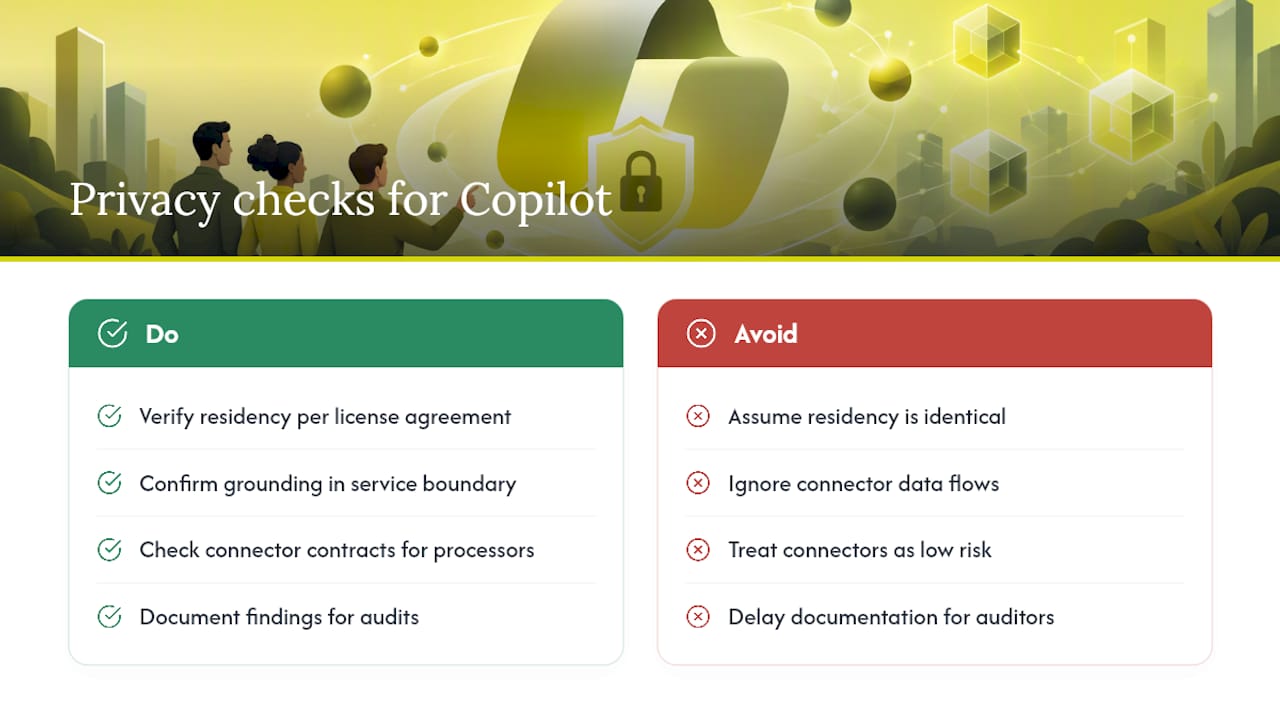
Copilot processes data inside your tenant’s existing Microsoft 365 service boundary, which means the privacy and residency commitments you already have with Microsoft generally extend to Copilot activity. That said, “generally extend” is not the same as “identical,” and IT managers need to verify residency commitments against their specific Microsoft 365 licensing agreement rather than assume.
For businesses in regulated industries, healthcare, finance, and legal, this matters at the contract level, not just the technical level. Where your data is processed and stored intersects with obligations under HIPAA, provincial privacy legislation, or client contracts that specify data location. A firm handling client health records under HIPAA needs to know that Copilot’s grounding process, the step where it retrieves and references your organization’s content to generate an answer, stays within that same service boundary rather than routing through some separate, less-governed AI pipeline.
Privacy questions around Copilot also intersect with third-party integrations. If your tenant connects Copilot to external data sources through connectors or plugins, verify explicitly whether that connector’s data flow stays within your compliance boundary or introduces a new external processor into the chain. Every new connector is effectively a new question mark for your compliance officer, and it deserves the same scrutiny you would give a new vendor contract.
Document your findings. When a client, auditor, or regulator asks “where does our data go when someone uses Copilot,” you want a written answer ready, not a scramble.
Security Risks Specific to AI Models Touching Enterprise Data
Traditional access control assumes a human reads one document at a time. Copilot assumes a model can synthesize dozens of documents into a single answer in seconds, and that difference in scale changes the actual risk profile.
The core new risk is not that Copilot leaks data through some flaw in the model. It is that Copilot dramatically accelerates the discovery of data that was already exposed. A compromised device running Copilot or Edge’s summarization features can help an attacker find and consolidate sensitive information far faster than manually browsing file shares ever could. Protecting endpoints with Intune App Protection and Defender for Endpoint matters as much as protecting the data source itself, because a compromised laptop with valid credentials turns Copilot into a reconnaissance tool.
There is also a secondary risk around prompt-based data extraction, where a user (malicious or simply careless) crafts a request specifically designed to pull together information they technically have access to but were never meant to assemble in one place, like combining scattered salary figures into a single compensation report. DLP policies that scope by sensitivity label, not just by file type, are your main defense here, since they can block Copilot from referencing labeled content regardless of how the prompt is phrased.
Finally, consider third-party Copilot agents and plugins carefully. Each one is a new integration point with its own permission scope, and a poorly scoped agent can widen your data exposure well beyond what the base Copilot deployment ever touched.
Training Employees to Use Copilot Without Creating Incidents
Most Copilot security failures are not sophisticated attacks. They are ordinary employees using a genuinely helpful tool without understanding that it surfaces everything they have access to, not just what they meant to search for.
Training should cover three practical points, delivered before broad rollout, not after an incident. First, Copilot only shows what a user is already authorized to see, so any surprising result reflects an existing permission problem, not a bug in the AI. Second, employees should understand what happens to their prompts, that interaction data is logged and retained, which changes how they should treat sensitive requests. Third, and most overlooked, employees need a clear channel to report when Copilot surfaces something that looks wrong, like a file that clearly should not have been accessible to them.
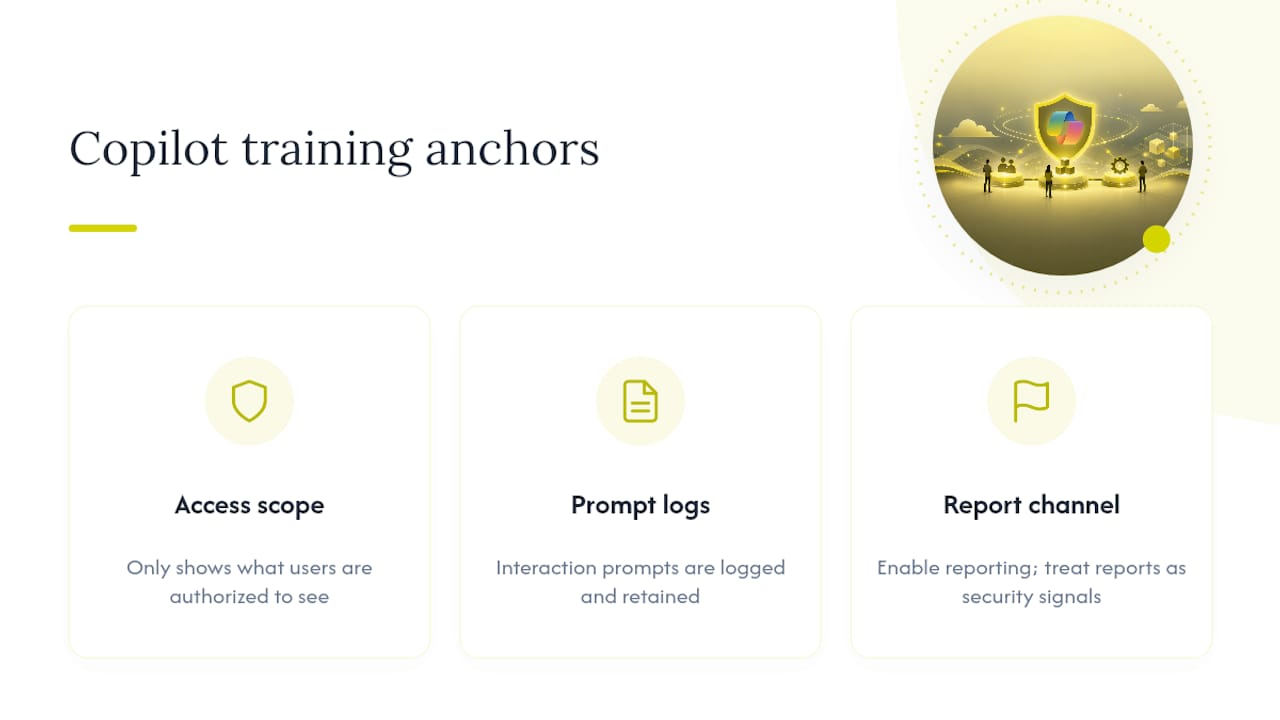
That last point deserves more attention than it usually gets. Employees stumbling onto oversharing through Copilot are actually a free, ongoing audit if you give them a way to report it. Treat those reports as a security signal, not a nuisance ticket. A short, mandatory session covering these three points, paired with a one-page reference document, does more for your Copilot data protection posture than another round of generic phishing-awareness training.
Reinforce it at rollout and again roughly ninety days later, once real usage patterns have settled in and questions have started to surface.
Fitting Copilot Security into Your Existing Security Policy
Copilot security should not exist as a standalone policy document sitting next to your acceptable use policy and your incident response plan. It needs to be woven directly into both.
Your acceptable use policy should explicitly address AI tools: what data classifications are appropriate to reference in a Copilot prompt, what output review is required before sharing AI-generated content externally, and what the consequences are for circumventing DLP controls. Your incident response plan needs a specific playbook branch for AI-related exposure, since “sensitive data surfaced through Copilot” requires different triage steps than a traditional phishing or malware incident. It is a permissions and DLP investigation first, not an endpoint forensics exercise.
Your data classification policy and your Copilot DLP rules need to stay in lockstep. If someone updates sensitivity label definitions without updating the corresponding Copilot DLP policy, you get silent gaps. This is where regular cross-team review pays off, pulling IT security, compliance, and whoever owns data governance into the same room quarterly.
If your organization already runs a BYOD policy, revisit it specifically through a Copilot lens. A personal device accessing Copilot without the same Intune App Protection controls applied to corporate devices creates an inconsistency that undermines everything else you have configured. Zero Trust guidance is explicit that device hygiene and least-privilege access apply equally regardless of who owns the hardware.
Catching Anomalous Copilot Activity Before It Becomes an Incident
Baseline behavior first, then watch for deviation. A finance employee running fifteen Copilot queries a day about routine reporting is normal. That same account suddenly querying HR-adjacent content or running unusually broad summarization requests at 2 a.m. is a signal worth investigating.
Purview’s Insider Risk Management and DSPM Activity Explorer give you the tooling to build these baselines and flag deviations automatically, rather than relying on someone manually reviewing logs. Set alert thresholds around volume spikes, access to newly labeled sensitive content, and unusual timing patterns relative to a user’s normal working hours.
Anomalous activity is not always malicious. It is frequently a compromised account, a legitimate but poorly scoped business need nobody documented, or a permission that should have been revoked months ago. Whatever the cause, the response sequence stays consistent: verify the account and device involved, check Conditional Access sign-in logs for anything unusual, review what content the session actually referenced, and only then decide whether this is a training conversation or a genuine security incident. Treating every anomaly as a full breach investigation burns out your team fast. Treating none of them as worth checking eventually gets you burned.
Compliance Requirements for Copilot Data Under GDPR and HIPAA
Copilot does not carry its own separate compliance framework. It inherits whatever obligations already apply to the data it touches, which means your existing GDPR, HIPAA, or PCI-DSS controls extend to Copilot activity by default, but only if you have actually configured them to.
Under GDPR, the core question is whether Copilot’s processing of personal data stays within your documented lawful basis and data processing agreements. Since interaction records get logged and retained, that logging itself becomes personal data processing subject to the same data subject access request obligations as any other system holding EU resident data.
For HIPAA-covered organizations, protected health information referenced by Copilot needs to stay within the same access controls, audit trails, and business associate agreement coverage that apply to that data everywhere else in your environment. The practical compliance question is not “does Copilot comply with HIPAA,” it is “did we configure sensitivity labels, DLP, and RCD correctly so Copilot only touches PHI the requesting user was already authorized to access, and can we prove it through audit logs if asked.”
That “can we prove it” clause is where most compliance gaps actually surface, not in the technology itself, but in whether retention policies and audit configurations were set up before regulated data started flowing through Copilot rather than after. Document your DLP policy mappings against each regulatory framework you operate under, and revisit that mapping whenever Microsoft updates Copilot’s data handling architecture.
Why Most Copilot Rollouts Get the Order Backward
The conventional advice treats Copilot security as a licensing and configuration checklist, something you complete once during setup and revisit occasionally. That framing undersells the problem. The research is consistent on one point: the overwhelming majority of real Copilot exposure incidents come from permission debt that existed long before Copilot arrived, not from anything novel about the AI itself.
Where conventional advice falls short is sequencing. Too many organizations enable Copilot licenses first and treat the SharePoint cleanup as a follow-up task. That is backward. Permission remediation and DLP configuration should happen before broad licensing, not alongside it, because every day Copilot runs against an unclean tenant is a day it is actively surfacing whatever oversharing already exists.
If you take one thing from this playbook, prioritize the unglamorous work: SharePoint Advanced Management reports, Purview DSPM assessments, and actually removing old “anyone” links. Conditional Access and Intune policies matter, but they protect the front door. Data hygiene determines what is sitting inside the house. Get that order right, and the rest of Microsoft Copilot security becomes a maintenance routine instead of a recurring emergency.
— 247techify Team
Get Hands-On Help Securing Your Copilot Rollout
Running a proper Pilot → Deploy → Operate rollout while also managing daily help desk tickets is exactly the kind of dual workload that causes IT teams to rush the permissions cleanup. The approach is built around a cybersecurity-first stance on Microsoft 365 management, backed by round-the-clock support and experts familiar with Purview, Conditional Access, and SharePoint Advanced Management in regulated industries.

If your tenant has never had a real Purview data risk assessment, that is the logical starting point before Copilot licenses go any further. 247techify’s AI Security Readiness Assessment identifies oversharing, misconfigured DLP rules, and Conditional Access gaps before they turn into an incident report. For teams that want ongoing management rather than a one-time cleanup, the AI Management plan covers Purview remediation, monitoring, and Copilot governance on a recurring basis. Book a scoped assessment and get a concrete remediation plan instead of a guess about where your exposure actually sits.
FAQ
How secure is Microsoft Copilot by default?
Copilot inherits your existing Microsoft 365 permissions and does not bypass them, so it is only as secure as your current SharePoint and OneDrive permission structure. If your tenant has oversharing problems, Copilot will make them visible rather than create new ones.
Does Copilot train on my company’s data?
No. Microsoft states that prompts and responses are stored as interaction records within your tenant boundary and are not used to train the underlying foundation models.
What is Restricted Content Discovery in Copilot security?
Restricted Content Discovery (RCD) excludes specific SharePoint sites from Copilot’s search and reference scope, so sensitive content remains fully usable by authorized staff but never surfaces in an AI-generated answer. It is one of the core admin controls recommended before scaling Copilot licensing.
How long should we retain Copilot interaction data?
Retention should match your existing legal, contractual, and compliance requirements, configured through the same Purview retention policies that govern your other Microsoft 365 data. There is no universal default that fits every regulated industry.
Can 247techify help us prepare for a Copilot rollout?
Yes. 247techify runs AI Security Readiness Assessments that identify SharePoint oversharing, DLP gaps, and Conditional Access weaknesses before Copilot licensing expands, and offers ongoing AI Management for continued governance. Current pricing for both is listed on the site.