Windows Autopilot deployment turns an OEM-installed Windows client into a business-ready device using Microsoft Intune and Microsoft Entra, with no custom images or driver packages required. The workflow runs in four stages: tenant preparation, device hash registration, group and profile assignment, then deployment through the Enrollment Status Page. Get the licensing, network, and TPM prerequisites wrong and the deployment will stall before a user ever sees their desktop.
TL;DR:
- Proper licensing and network configurations, including whitelisting all Microsoft endpoints, are critical; missing either can cause deployment stalls early on.
- Autopilot’s success relies heavily on device hardware, particularly TPM 2.0 and supported Windows versions, which determine available deployment modes.
- Choosing the wrong deployment mode for each device type can lead to support issues, so mapping device personas to modes beforehand is essential.
- Starting with a small pilot of five to ten devices and establishing clear success criteria helps prevent widespread rollout problems.
- Regularly auditing deployment profiles, device names, and monitoring the deployment status report can maintain large-scale Autopilot management over time.
Table of Contents
- What Is Windows Autopilot and When Should You Use It?
- What Are the Prerequisites for Windows Autopilot Setup?
- Which Windows Autopilot Deployment Mode Should You Choose?
- How Do You Deploy Windows Autopilot Step by Step?
- What Does the Enrollment Status Page Track and Fix?
- How Do You Scale Windows Autopilot Across an Organization?
- A Security-First Take on Autopilot Rollouts
- Need Help Running Your Windows Autopilot Rollout?
- Where to Find the Official Windows Autopilot Documentation
- Sources
- FAQ
What Is Windows Autopilot and When Should You Use It?
Windows Autopilot is a cloud-based provisioning service that transforms new or wiped hardware into a fully configured, policy-compliant device without a technician ever touching it. Microsoft’s own documentation is explicit on this point: Autopilot replaces custom imaging entirely by working with the OEM-installed Windows client rather than replacing it. That distinction changes how you think about IT operations.
Traditional imaging means maintaining a golden image, patching it, testing driver packages, and repeating that cycle every time hardware changes. Autopilot skips all of it. Devices ship straight from the OEM to the end user, who unboxes it, connects to Wi-Fi, and signs in. Everything else, from app installs to security baselines, happens automatically in the background.
Autopilot fits several core scenarios:
- New hardware rollouts where devices ship directly to remote employees.
- Kiosk and shared-device setups in retail, warehouses, or clinical environments.
- Repurposing existing machines through a factory-reset and reprovisioning workflow.
- Pre-provisioned deployments where IT handles the heavy configuration before handoff.
If your organization still burns hours building and validating custom Windows images, Autopilot device provisioning is the operational shift worth making first.
What Are the Prerequisites for Windows Autopilot Setup?
Autopilot prerequisites fall into four buckets, and skipping any one of them is the most common reason pilots stall in week one.
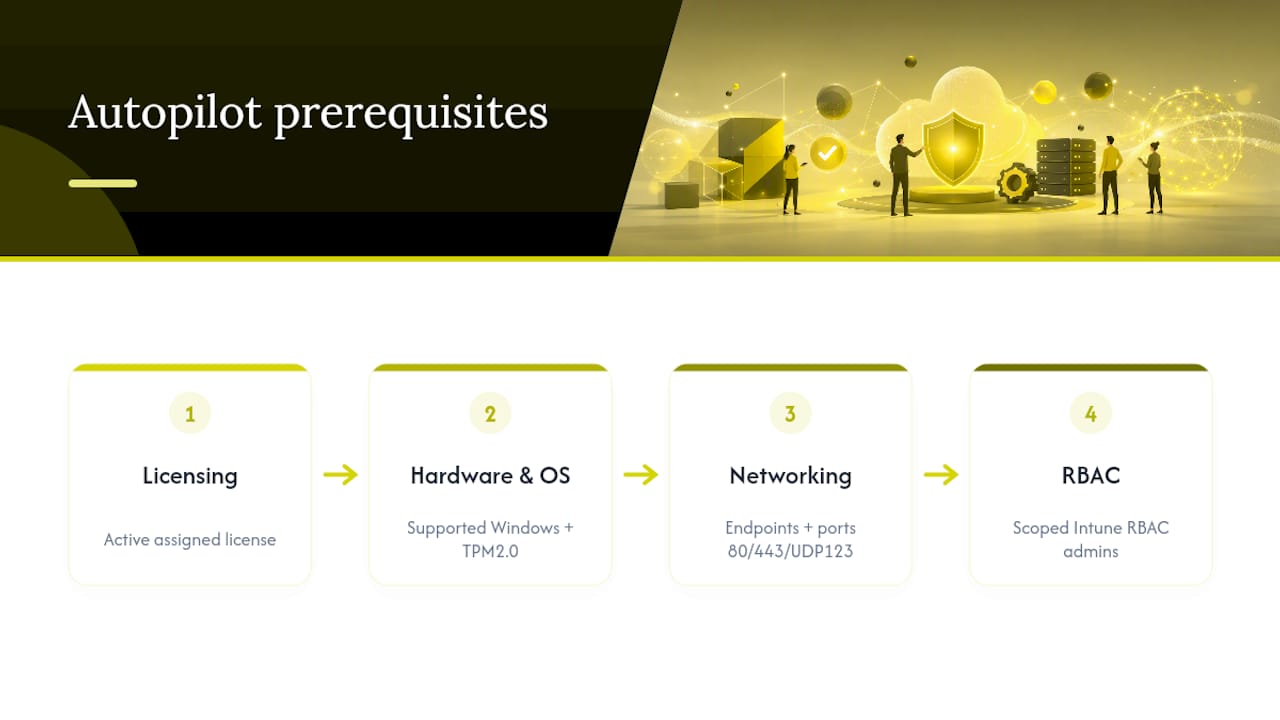
Licensing. You need Microsoft 365 Business Premium, an Enterprise E3/E5 subscription, or an Intune subscription paired with Microsoft Entra ID P1 or P2. Licenses must be actively assigned to the enrolling user, not just purchased and sitting unassigned in the tenant.
Hardware and OS. Devices need a supported Windows client release and TPM 2.0 for device association and self-deploying mode. Older TPM hardware will register but cannot run attestation-dependent modes.
Networking. Autopilot needs outbound access to specific Microsoft endpoints, plus ports 80 and 443 for HTTPS traffic and UDP 123 for time synchronization. Proxy servers that intercept or inspect this traffic frequently break the handshake, and Delivery Optimization needs enough bandwidth headroom to avoid starving the provisioning process during app installs.
RBAC. Assign Autopilot administration through Intune role-based access control rather than handing out Global Administrator rights. Scope it to the people who actually manage device groups and profiles.
Pro Tip: Firewall rules that silently block a single required Microsoft endpoint are the single most common cause of pilot failures. Whitelist every documented endpoint and run a full test enrollment on your actual corporate network, not a clean lab network, before you touch production devices.
Which Windows Autopilot Deployment Mode Should You Choose?
Windows Autopilot supports three deployment modes, and picking the wrong one for a given device persona creates support tickets you won’t see coming until rollout day.
- User-driven mode requires the end user to sign in with their own credentials during setup. It’s the right default for assigned-user laptops and desktops where you want the device tied to one person from the first boot.
- Self-deploying mode runs hands-free with no user credentials at all. Microsoft’s documentation confirms this mode depends on TPM attestation and Microsoft Entra join, which makes it a strong fit for kiosks, conference-room PCs, and shared shift-work devices, but a poor fit for any hardware without TPM 2.0.
- Pre-provisioned deployment, also called White Glove, front-loads most of the configuration work at a staging location before the device ever reaches the end user. It shortens the on-desk experience to a few minutes but adds network and profile prerequisites you need to validate before shipping.
Pro Tip: Build a one-page persona checklist mapping each device type (executive laptop, warehouse kiosk, shared clinic tablet) to its deployment mode before you register a single hash. Retrofitting the wrong mode after enrollment means deleting device records and starting over.
How Do You Deploy Windows Autopilot Step by Step?
Microsoft’s guidance on cloud-native endpoint setup lays out a workflow that scales cleanly from a five-device pilot to an enterprise-wide rollout. Run it in four phases.
- Prepare the tenant. Enable automatic MDM enrollment in Microsoft Entra, confirm every pilot user has an assigned license, and configure company branding along with a device naming template.
- Collect device hashes. Run the
Get-WindowsAutopilotInfo.ps1script on each target machine, import the resulting hardware hash into Autopilot, and tag each device with a Group Tag matching its persona. - Build groups and profiles. Create dynamic Microsoft Entra groups keyed to those Group Tags, then build deployment profiles covering OOBE settings, deployment mode, and the device name template. You can maintain up to 350 deployment profiles per tenant.
- Test and deploy. Sync the Autopilot service, confirm the Date assigned value appears in Intune, run through OOBE on one test device, and watch the Enrollment Status Page for errors before you ship anything to real users.
For your pilot, start small:
- Five to ten volunteer devices spread across two or three departments.
- One device per persona and Group Tag combination.
- A documented rollback step (device record removal) if something breaks mid-test.
- A hard success criterion: OOBE completion, policy application, and app install all finishing without manual intervention.
Only expand past the pilot once every test device clears that bar without a support ticket. The Intune device management pilot playbook covers this staged approach in more detail if you’re running Autopilot alongside a broader Intune rollout.
What Does the Enrollment Status Page Track and Fix?
The Enrollment Status Page enforces provisioning across three phases, and knowing which phase failed tells you exactly where to look. Microsoft documents these as Device preparation, Device setup, and Account setup, and the page blocks user access until each required step in that phase completes.
Device preparation covers Entra join and MDM enrollment. Device setup handles policy and app deployment. Account setup finishes user-specific configuration after sign-in. A failure in phase one almost always traces back to networking or licensing; a failure in phase two usually means an app or policy assignment never reached the device group.
Four causes account for most ESP failures:
- Blocked network endpoints that prevent the device from reaching Microsoft’s provisioning services.
- TPM attestation errors, commonly surfacing as timeout code
0x800705B4on hardware without TPM 2.0 or on virtual machines, since self-deploying mode requires TPM attestation to complete. - Missing or unassigned licenses for the enrolling user.
- Policy or application assignment gaps where the target group never received the required configuration.
Run through a fast checklist when ESP stalls: verify endpoint access, confirm ports 80, 443, and 123 are open, check the TPM attestation state, confirm the Date assigned field in Intune, and pull the Autopilot deployment report before you escalate. Firewall misconfiguration is common enough that reviewing your firewall rules against Microsoft’s documented endpoint list should be step one, not step four.
How Do You Scale Windows Autopilot Across an Organization?
Scaling Windows Autopilot works best as staged rings: pilot, then early adopters, then full production, with each ring mapped to a persona and Group Tag before you touch the next batch of devices.
For existing hardware, you have two real options. Register the device and reset it in place through Autopilot’s existing-device workflow, or wait for the natural hardware refresh cycle and provision new machines from day one. In-place reset gets you consistency faster; waiting for refresh avoids disrupting active users but delays standardization.
A few operational habits keep large deployments manageable long after the pilot ends:
- Use a naming template built on
%SERIAL%so device names stay unique and traceable without manual entry. - Audit deployment profiles regularly to catch overlapping assignments before they conflict.
- Monitor the Autopilot deployment status report weekly during active rollout phases.
- Remove device records promptly during decommissioning to keep your tenant’s device inventory accurate.
A Security-First Take on Autopilot Rollouts
Autopilot’s biggest risk isn’t provisioning failure. It’s shipping a device that enrolls cleanly but lands with weak defaults: standard user accounts without enforced least privilege, BitLocker not triggered automatically, Defender running with default policy, no conditional access gate at first sign-in. Bake security into the deployment profile itself, not into a follow-up ticket. Restrict who holds Autopilot admin roles, standardize naming before the first pilot device ships, and treat pilot validation as a compliance checkpoint, not a formality.
— 247techify Team
Need Help Running Your Windows Autopilot Rollout?
Deploying Windows Autopilot in-house is manageable for teams with deep Intune and Microsoft Entra experience and room in the schedule to run a proper pilot. It gets harder fast when you’re short on that experience, working under compliance pressure from HIPAA or PCI-DSS, or trying to hit a hardware refresh deadline without slowing down the business. That’s the gap 247techify closes for regulated Canadian organizations.

Autopilot implementations are often supported with a cybersecurity-first approach, from pilot design through staged rollout, backed by 24/7 support and technicians who handle compliance-sensitive deployments in healthcare and finance. Whether you need the full rollout managed or ongoing device oversight afterward, our device management services cover both. Check current managed IT plans and pricing to get a quote for your deployment.
Where to Find the Official Windows Autopilot Documentation
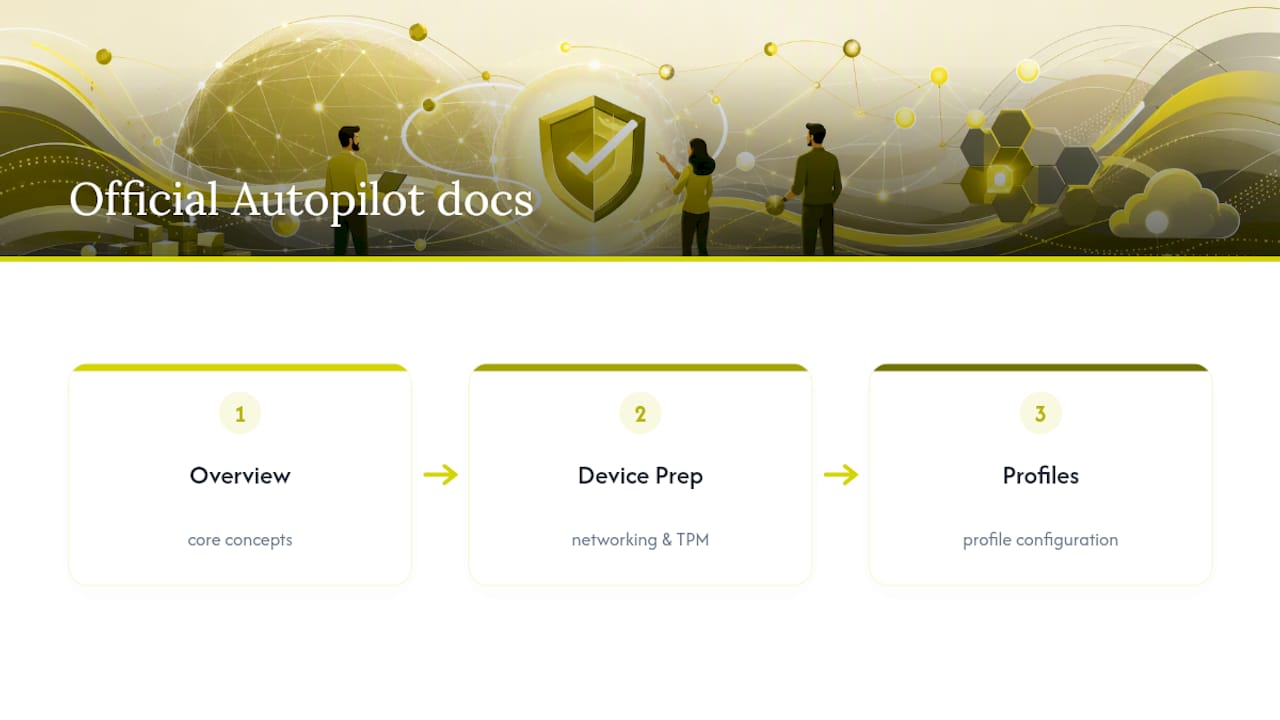
For the authoritative source on every procedure covered above, start with Microsoft’s Windows Autopilot overview for core concepts, then move to the device preparation requirements page for networking and TPM specifics, and the deployment profiles reference for profile configuration details.
FAQ
What Are the Downsides of Using Windows Autopilot?
Autopilot depends entirely on network access to Microsoft’s cloud endpoints, so it fails outright in air-gapped or heavily restricted network environments. It also requires TPM 2.0 for self-deploying mode, which rules out older hardware, and initial setup around naming templates, group tags, and RBAC takes real planning time before the first device ships smoothly.
Is Windows Autopilot the Same as Intune?
No. Windows Autopilot handles device provisioning and initial setup, while Microsoft Intune manages the device afterward through policies, app deployment, and compliance enforcement. They work together, with Autopilot handing off a fully enrolled device to Intune for ongoing management.
What Is Windows Autopilot Pre-Provisioned Deployment?
Pre-provisioned deployment, also called White Glove, lets IT complete most of the device configuration at a staging location before the device reaches the end user. The user then finishes only the account-specific steps, cutting the on-desk setup time to a few minutes.
What Is Windows Autopilot?
Windows Autopilot is a cloud-based service that turns an OEM-installed Windows client into a business-ready device using Microsoft Intune and Microsoft Entra, without requiring custom images or manual driver installation.