
Microsoft Intune is a cloud-based endpoint management service that provides enterprise MDM and MAM and integrates with Microsoft Entra ID to enforce Conditional Access. It manages Windows, macOS, iOS, Android, and Linux devices from one console, tying every enrollment to an identity rather than just a device record. The practical path forward is narrow but reliable: map your identity model first, then run a pilot group before touching production fleets.
TL;DR:
- Mapping your identity model first is crucial, as Entra registered devices are used mainly for BYOD, while Entra joined devices are common for company-owned hardware.
- Automated enrollment paths like Apple ADE and Android Enterprise require factory resets, which should be communicated to users before rollout to avoid disruptions.
- Compliance reporting should be enabled before Conditional Access enforcement to identify and fix device gaps proactively, minimizing access issues.
- Bulk operations can manage up to 100 devices at once, but larger fleets require scripting with the Graph API to avoid manual management bottlenecks.
- Intune’s sign-in polling creates delays in policy application, making dedicated Apple MDM tools beneficial for fleet automation and rapid policy deployment.
Table of Contents
- What Does Intune Device Management Actually Do?
- What Features Matter Most for Daily Device Management?
- How Should You Plan an Intune Enrollment Rollout?
- How Do Remote Actions and Bulk Operations Work?
- Where Does Intune Fall Short, and When Should You Add a Specialist Tool?
- How 247techify Supports Intune Device Management Projects
- What We’ve Learned Rolling Out Intune for Clients
- Ready to Deploy Intune Without the Trial and Error?
- Sources
- FAQ
What Does Intune Device Management Actually Do?
Intune splits device control into two distinct modes, and picking the wrong one is the most common rollout mistake. Mobile Device Management (MDM) gives you full control over a corporate-owned device: configuration profiles, remote wipe, compliance enforcement, the works. Mobile Application Management (MAM) works at the app layer instead, protecting corporate data inside Outlook or Teams on a personal phone without touching the rest of the device. Corporate-owned hardware almost always calls for MDM; personal devices in a bring-your-own-device program call for MAM, or a lighter MDM enrollment scoped narrowly to work data. A BYOD policy built around clear enrollment boundaries makes this decision far easier before you write a single configuration profile.
Device identity determines how enrollment plays out. A device can be Microsoft Entra registered (typical for BYOD, minimal footprint) or Microsoft Entra joined (full corporate identity, common for company-owned Windows machines), and some organizations run co-management alongside a legacy tool during transition. The identity choice governs which enrollment methods and sign-in experiences are even available to you, according to Microsoft’s enrollment documentation.
Platform coverage is broad but not uniform. Intune manages:
- Windows, through Autopilot and traditional MDM enrollment
- macOS, via Apple’s device enrollment framework
- iOS and iPadOS, including Apple Automated Device Enrollment (ADE)
- Android, across several Android Enterprise modes
- Linux, with more limited profile support than Windows or macOS
Some automated enrollment paths, including several ADE and Android Enterprise modes, require a factory reset before the device will accept enrollment, a detail worth flagging to end users before you schedule a rollout weekend.
What Features Matter Most for Daily Device Management?
Once devices are enrolled, the daily workload centers on configuration profiles, app deployment, and update policy. Configuration profiles push settings like Wi-Fi credentials, VPN tunnels, and password requirements without a single help desk ticket. App deployment handles both required corporate apps and optional self-service installs, while update policies stagger operating system rollouts so a bad patch doesn’t hit every device on the same afternoon.
The feature that separates Intune from a plain configuration tool is its compliance reporting. Intune evaluates each device against your compliance rules and reports that status straight into Microsoft Entra ID, where Conditional Access policies decide whether that device gets access to email, SharePoint, or any other Microsoft 365 resource. A device that falls out of compliance loses access automatically, no manual intervention required.
Beyond that, a few capabilities do most of the heavy lifting:
- Autopilot for zero-touch Windows provisioning straight from the box
- Automated enrollment (ADE for Apple, Android Enterprise for Android) for corporate-owned fleets
- Remote Help, Microsoft’s built-in remote assistance tool, for hands-on troubleshooting
- Endpoint analytics for spotting slow-boot devices and startup performance issues before users complain
Pro Tip: Turn on compliance reporting before you turn on Conditional Access enforcement. Running compliance in report-only mode for a week shows you exactly which devices would get locked out, so you can fix gaps before anyone actually loses access.
How Should You Plan an Intune Enrollment Rollout?
A rushed enrollment rollout is the single fastest way to flood your help desk. The sequence below, drawn from Microsoft’s own enrollment guidance, keeps disruption contained.
- Lock down identity and enrollment restrictions first. Decide whether devices will be Entra registered or Entra joined, set enrollment restrictions to block unmanaged device types, and require MFA for enrollment where the sensitivity of your data justifies it.
- Write your terms and conditions. Users need to accept a clear statement of what Intune can and cannot see before they enroll, both for compliance and for trust.
- Run a genuine pilot. Pick a small pilot group spanning your real platform mix, not just the easiest ones, and validate every profile and policy against it.
- Expand in stages. Roll forward by department or location only after the pilot clears, watching compliance dashboards at each step rather than pushing everything at once.
- Use a Device Enrollment Manager account for bulk device prep. A standard user can enroll up to 15 devices, but a designated Device Enrollment Manager account can enroll as many as 1,000 corporate-owned devices, which matters when IT is staging dozens of laptops before a new-hire class starts.
- Unenroll from any prior MDM before re-enrolling in Intune. Running two management agents on the same device causes policy conflicts that are miserable to troubleshoot after the fact.
Pro Tip: If you’re migrating off a legacy MDM, unenroll and factory reset a small batch first and confirm Intune policies land cleanly before touching the rest of the fleet. A partial migration where two agents fight over the same settings is one of the hardest support tickets to diagnose.
How Do Remote Actions and Bulk Operations Work?
Day-to-day device management comes down to a handful of remote actions, each suited to a different scenario. Wipe resets a device to factory settings and removes all data, the right call for a lost or decommissioned device. Retire removes only corporate data and the management profile while leaving personal data intact, the standard action when an employee leaves but keeps their own phone. Sync forces an immediate policy check-in rather than waiting for the device’s normal check-in cycle. Lost mode, available on supervised iOS devices, locks the screen and can locate the device remotely.
Bulk operations matter once you’re managing more than a handful of endpoints. Intune allows actions like wipe, retire, or sync on up to 100 devices at once, which covers most department-level cleanups without scripting. Beyond that scale, the Graph API and the Intune Management Extension take over, letting you script remediation and pull inventory reports on a schedule instead of clicking through the console one group at a time.
| Action | What it removes | Typical use case |
|---|---|---|
| Wipe | Everything, full factory reset | Lost, stolen, or decommissioned device |
| Retire | Corporate data and management profile only | Employee offboarding on a personal device |
| Sync | Nothing, forces policy check-in | Troubleshooting a delayed policy push |
| Lost mode | Nothing, locks and locates | Supervised iOS device reported missing |
Where Does Intune Fall Short, and When Should You Add a Specialist Tool?
Intune’s biggest structural limitation is its check-in cadence. Devices poll for policy updates on an interval rather than responding to real-time triggers, which means a policy change doesn’t always land the instant you push it. Script size limits inside the Intune Management Extension can also force you to break complex remediation logic into multiple smaller scripts. Administrators moving from a simpler MDM tool report a steeper learning curve simply because Intune’s policies, profiles, and assignments span a genuinely distributed architecture.
Licensing adds another layer to plan around. Some Intune capabilities are user-licensed through Microsoft 365 tiers, others are device-only, and Conditional Access enforcement depends on your Microsoft Entra ID edition, so a licensing review belongs early in any budget conversation.
For Apple-heavy fleets running at real scale, specialist Apple MDM tools often provide faster policy triggers and deeper automation than Intune delivers on its own. A documented enterprise pattern runs a dedicated Apple MDM for day-to-day device automation while keeping Intune as the compliance authority feeding Conditional Access, giving you Apple-specific depth without losing the Entra-native compliance signal that Conditional Access depends on.
Pro Tip: Before comparing Intune vs Jamf, Intune vs Workspace ONE, or Intune vs MobileIron for a Mac-heavy fleet, check whether your real bottleneck is check-in speed or reporting depth. Those are different problems with different fixes, and conflating them leads to buying the wrong tool.
How 247techify Supports Intune Device Management Projects
Running a clean Intune rollout takes more than console access. It takes someone mapping identity, restrictions, and compliance rules before a single device enrolls. 247techify handles managed device enrollment, co-managed IT arrangements for teams that want to keep some work in-house, and 24/7 monitoring so compliance drift gets caught before Conditional Access locks someone out mid-workday. For regulated clients, that work extends into compliance consulting for HIPAA and PCI-DSS requirements. Businesses without a dedicated Intune administrator on staff, or those juggling compliance obligations on top of a device rollout, typically get more value engaging managed support than building that expertise from scratch. Full details sit on 247techify’s device management service page.
What We’ve Learned Rolling Out Intune for Clients
Two lessons repeat across many Intune deployments. First, pilot groups help catch configuration profile issues on a smaller number of devices before a wider rollout. Second, identity mapping should be completed before beginning enrollment. Establish the Entra structure first; enrollment restrictions, MFA, and pilot group planning should be treated as essential checklist items.
— 247techify Team
Ready to Deploy Intune Without the Trial and Error?
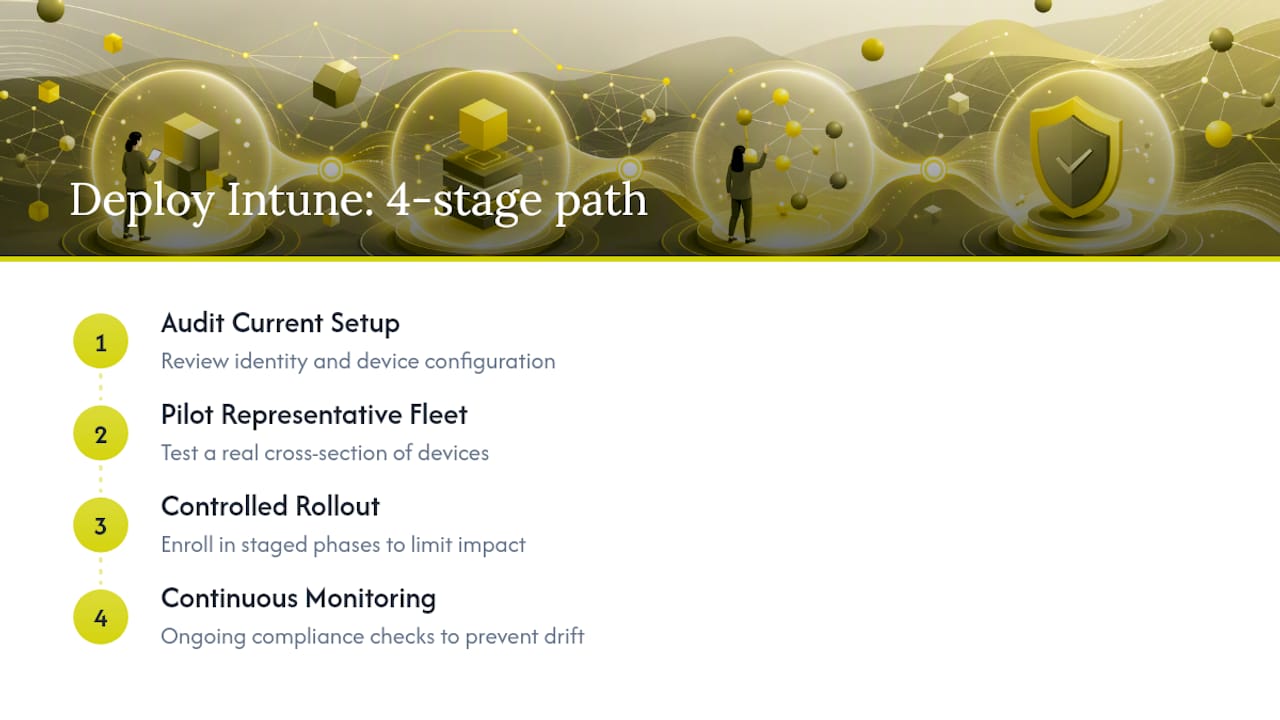
247techify runs Intune device management as a structured engagement, not a one-off configuration job: audit your current identity and device setup, pilot a real cross-section of your fleet, roll out in controlled stages, and monitor compliance continuously afterward so Conditional Access keeps working the way it’s supposed to. That continuous monitoring piece is what most in-house teams skip once the rollout ends, and it’s exactly where policy drift and quiet compliance failures start. For businesses that want the rollout done right the first time, without pulling internal staff off other projects for weeks, our managed IT services cover the full engagement from audit through ongoing support. If you’d rather keep some of the work in-house, our co-managed IT services let your team stay hands-on while we handle the heavier lifting. Reach out for a device management audit and get a clear picture of where your current setup stands before you enroll another device.
FAQ
What Can My Employer See With Intune?
An employer can see device compliance status, installed apps, device model and operating system version, and location on supervised devices in lost mode. On personal devices enrolled under MAM, Intune only sees corporate app data, not personal photos, texts, or browsing history.
What Is Intune Device Management?
It’s Microsoft’s cloud-based service for enrolling, configuring, securing, and updating devices and apps across Windows, macOS, iOS, Android, and Linux, with compliance status feeding directly into Microsoft Entra ID for Conditional Access decisions.
Can Intune Monitor Your Phone?
On a fully MDM-enrolled corporate phone, Intune can monitor compliance settings, installed apps, and location if lost mode is triggered. On a personal phone managed only through MAM, monitoring is limited strictly to the corporate app container.
Can Microsoft Intune Track Activity?
Intune tracks device compliance status, security posture, and app inventory rather than granular user activity like keystrokes or browsing history; that level of activity tracking sits outside its core device management capabilities.
How Is Intune Different From Group Policy?
Group Policy manages domain-joined Windows devices on a local network, while Intune manages devices anywhere over the internet across multiple platforms and ties compliance directly to Microsoft Entra ID for Conditional Access, something Group Policy alone can’t do.