
Publish SPF and DKIM first, since DMARC evaluates their results and cannot function without them. Once both authenticate cleanly, publish a DMARC TXT record at _dmarc.yourdomain.com containing v=DMARC1; p=none; rua=mailto:your@reports.example. Starting at p=none puts you in monitoring mode: no mail gets blocked, but you start receiving aggregate reports you can use to fix broken senders before stepping up to quarantine and eventually reject.
TL;DR:
- Publishing an SPF record requires listing all email sources and limiting DNS lookups to 10 to avoid silent failures; merge multiple includes and avoid duplicate records.
- Setting up DKIM involves generating key pairs, publishing the public key in DNS, and enabling signing; rotate keys gradually to prevent signature verification issues.
- A DMARC record should start with a policy of none and be gradually tightened once reports confirm proper alignment, especially fixing DKIM issues for forwarded emails.
- Regularly verify SPF, DKIM, and DMARC by checking DNS records and inspecting email headers to ensure all protocols pass during rollout and enforcement phases.
- Common pitfalls include duplicate DNS records, third-party senders not signing with your domain, forwarding breaking SPF, and rushing enforcement without monitoring.
Table of Contents
- What Is an SPF Record and How Do You Publish It?
- How Does DKIM Signing Work and How Do You Set It Up?
- What Is DMARC and How Does the Policy Record Work?
- How Do You Set Up SPF Step by Step?
- How Do You Publish and Rotate DKIM Keys?
- How Do You Roll Out DMARC Safely Without Blocking Mail?
- How Do You Verify SPF, DKIM, and DMARC Are Working?
- What Are the Most Common SPF, DKIM, and DMARC Pitfalls?
- Why Trust This Setup Guidance, and When Should You Get Managed Help?
- What’s the Right Enforcement Posture for Most Organizations?
- Let 247techify Handle Your Email Authentication Setup
- Sources
- FAQ
What Is an SPF Record and How Do You Publish It?
An SPF record answers one question: which mail servers are allowed to send email claiming to be from your domain? It’s a single DNS TXT record that lists authorized sending IP addresses and third-party services, and receiving mail servers check the envelope sender’s IP against that list on every incoming message.
A minimal, working example looks like this:
v=spf1 ip4:203.0.113.10 include:_spf.google.com -all
That record breaks down into a few core mechanisms you’ll use repeatedly:
- v=spf1 marks the record as SPF version 1, mandatory as the first tag.
- ip4 / ip6 authorizes a specific IP address or block directly.
- include pulls in another domain’s SPF record, which is how you authorize services like Google Workspace or a marketing platform without listing raw IPs.
- a / mx authorizes the IPs already listed in your domain’s A or MX records.
- -all tells receivers to hard fail anything not explicitly listed above. A softer
~allmarks unauthorized mail as suspicious without an outright fail, useful during initial testing.
SPF has a hard ceiling that trips up almost every organization eventually: a maximum of 10 DNS lookups per check, a limit set in the protocol itself and enforced by every major receiving mail server. Each include can trigger its own nested lookups, so stacking five or six third-party services (a CRM, a helpdesk tool, an email marketing platform, a payroll system) can silently blow past that ceiling. When it does, receivers treat the entire SPF check as a permanent error, which is functionally the same as having no SPF record at all.
Multiple SPF TXT records on the same domain cause a similar failure. DNS technically allows more than one TXT record with an spf1 prefix, but the SPF specification requires exactly one, and most validators will reject the domain outright when they find two. If you’re consolidating services, merge every include and ip4 entry into a single record rather than adding a second one.
For subdomains that send mail independently, such as a marketing subdomain or a transactional email service, publish a separate SPF record scoped to that subdomain rather than trying to cram everything into the root domain’s record. It keeps each record shorter and closer to that 10 lookup ceiling.
How Does DKIM Signing Work and How Do You Set It Up?
DKIM works differently from SPF. Instead of authorizing sending IPs, it attaches a cryptographic signature to specific message headers using a private key held by your mail server or email service provider. The receiving server then looks up the matching public key in DNS and verifies the signature mathematically. If the message was altered in transit, even a single character, the signature fails.
The public key lives in a DNS TXT record at a specific location: selector._domainkey.yourdomain.com. The “selector” is a name you choose, often something like mail or a date stamp such as s202601, and it lets you run multiple DKIM keys simultaneously, which matters for rotation.
Setting up DKIM signing generally follows this sequence:
- Choose a selector name and generate a public/private key pair, usually through your email service provider’s admin console or your mail server’s DKIM utility.
- Publish the public key as a TXT record at
selector._domainkey.yourdomain.com, formatted with av=DKIM1; k=rsa; p=tag structure. - Enable signing in your mail transfer agent or ESP so outgoing mail actually gets signed with that selector.
- Send a test message to an external mailbox and inspect the raw headers for
dkim=passin theAuthentication-Resultsline, confirming both the signature validity and that the signing domain matches.
Key rotation should never involve deleting the old selector first. Publish the new selector’s public key, switch signing over to it, wait until you’ve confirmed dkim=pass on fresh mail, and only then remove the retired selector’s DNS record. Doing it in the wrong order breaks signature verification on anything still in transit.
Pro Tip: If your business uses Microsoft 365, DKIM setup runs through the Defender portal rather than raw DNS edits in some configurations. Check Microsoft’s SPF configuration guidance before assuming you need to hand-edit every record yourself.
DKIM also tends to survive mail forwarding far better than SPF does, since the signature travels with the message body and headers rather than depending on the sending IP, which changes the moment a message gets relayed through a forwarding server or mailing list.
What Is DMARC and How Does the Policy Record Work?
DMARC sits on top of SPF and DKIM rather than replacing either one. A message passes DMARC when either SPF or DKIM passes and aligns with the domain in the visible “From:” header, according to RFC 7489, the specification that governs how policy evaluation and alignment actually work.
A DMARC record is a single TXT record published at _dmarc.yourdomain.com, and it requires two tags at minimum: v=DMARC1 and a policy tag p=, according to guidance from Dmarcreport. A typical starting record looks like this:
v=DMARC1; p=none; rua=mailto:reports@yourdomain.com; adkim=r; aspf=r
Each tag controls a specific behavior:
| Tag | Purpose | Recommended starting value |
|---|---|---|
p= |
Policy applied to failing mail from the main domain | none |
sp= |
Policy applied to failing mail from subdomains | none (match p= initially) |
rua= |
Address for aggregate XML reports | Your monitoring mailbox or vendor address |
ruf= |
Address for forensic (per-message) failure reports | Optional, often omitted early on |
pct= |
Percentage of failing mail the policy applies to | 100 once you move past none |
adkim= |
DKIM alignment mode | r (relaxed) |
aspf= |
SPF alignment mode | r (relaxed) |
Alignment is the part most people skip past too quickly, and it’s the part that actually determines whether DMARC passes. Relaxed alignment (r, the default) means the domain in the DKIM signature or SPF check only has to share the same organizational domain as the From header, so mail.yourdomain.com aligns fine with yourdomain.com. Strict alignment (s) demands an exact match. Most organizations should stay on relaxed mode unless they have a specific reason to tighten it, since strict mode breaks legitimate configurations more often than it stops abuse.
Only one DMARC record can exist per domain. Publishing two, often the result of two different teams or vendors each adding their own during setup, causes receivers to treat DMARC as unenforceable, similar to duplicate SPF records. Double-check for stray whitespace, missing semicolons, and a trailing semicolon after the last tag too, since malformed syntax gets ignored by some validators without any warning at all.
How Do You Set Up SPF Step by Step?
Getting SPF right starts with an inventory, not a DNS edit. Skipping straight to writing a record without knowing every sending source is the single most common reason SPF breaks weeks after launch.
- List every system that sends mail as your domain. This includes your primary mailbox provider, marketing platforms, CRM systems, invoicing tools, help desk software, and any server-side application that emails receipts or notifications.
- Map each sender to an SPF mechanism. A cloud email provider typically hands you an
include:string; a self-hosted server needs anip4:orip6:entry. - Draft the record and count lookups. Add up every
includechain manually or with a validator, since each nested include counts against the 10-lookup ceiling. - Publish the TXT record through your DNS provider’s control panel. The host or name field is typically just
@for the root domain, and the value field holds the fullv=spf1...string. - Verify propagation and correctness with a DNS lookup tool, then send test messages to Gmail or Outlook addresses and check the
Authentication-Resultsheader forspf=pass.
If your sender count pushes you past the lookup limit, the fallback isn’t to delete senders arbitrarily. Consolidate multiple includes into fewer flattened IP ranges where the provider allows it, or move high-volume transactional senders onto a dedicated subdomain with its own leaner SPF record.
How Do You Publish and Rotate DKIM Keys?
- Choose a selector naming convention, ideally one that includes a date or version number so rotation history stays traceable in your DNS records.
- Generate the key pair through your mail platform’s admin panel (Microsoft 365, Google Workspace, and most ESPs generate this automatically once you request custom domain signing).
- Publish the public key as a TXT record at
selector._domainkey.yourdomain.com, copying the exact string the provider gives you, since a single missing character breaks the signature check entirely. - Enable signing on the sending side and confirm the selector name appears in the
DKIM-Signatureheader of outgoing test mail. - Check for
dkim=passin theAuthentication-Resultsheader of a message received at an external test mailbox. - Rotate on a schedule by publishing a new selector alongside the old one, switching signing over, confirming
dkim=passon fresh mail for several days, then retiring the old selector’s DNS record.
Pro Tip: Some cloud providers sign outgoing mail with their own domain by default instead of yours, which technically passes DKIM but doesn’t help your domain’s reputation. Ask your provider specifically how to enable custom domain signing rather than assuming default signing covers you.
Watch for provider quirks here. Some platforms require you to verify domain ownership through a separate TXT record before they’ll even generate DKIM keys for you, and others cap you at a small number of active selectors, which matters if you’re mid-rotation across several sending platforms at once.
How Do You Roll Out DMARC Safely Without Blocking Mail?
Moving straight to p=reject on day one is how legitimate mail gets silently dropped, and it’s the single most common mistake organizations make with DMARC. The safer path follows a staged rollout that turns real delivery data into fixes before enforcement tightens, a sequence recommended in DMARC’s own safe rollout guidance.
- Publish
p=nonewith a workingrua=address and let reports accumulate for at least two weeks; low-volume senders may need longer to capture a representative sample. - Feed the incoming XML into a report parser or dashboard, since raw aggregate reports are genuinely difficult to read by eye, according to dmarcreport.com’s guidance on DMARC records.
- Build a per-sender list of pass and fail results from that parsed data, then fix each failing stream individually: add missing IPs to SPF, or, better, enable DKIM signing under your own domain for that sender.
- Prioritize DKIM fixes for anything that gets forwarded or passes through mailing lists, since SPF alignment breaks almost immediately once a message hops through an intermediate server.
- Once failing streams drop to near zero, introduce
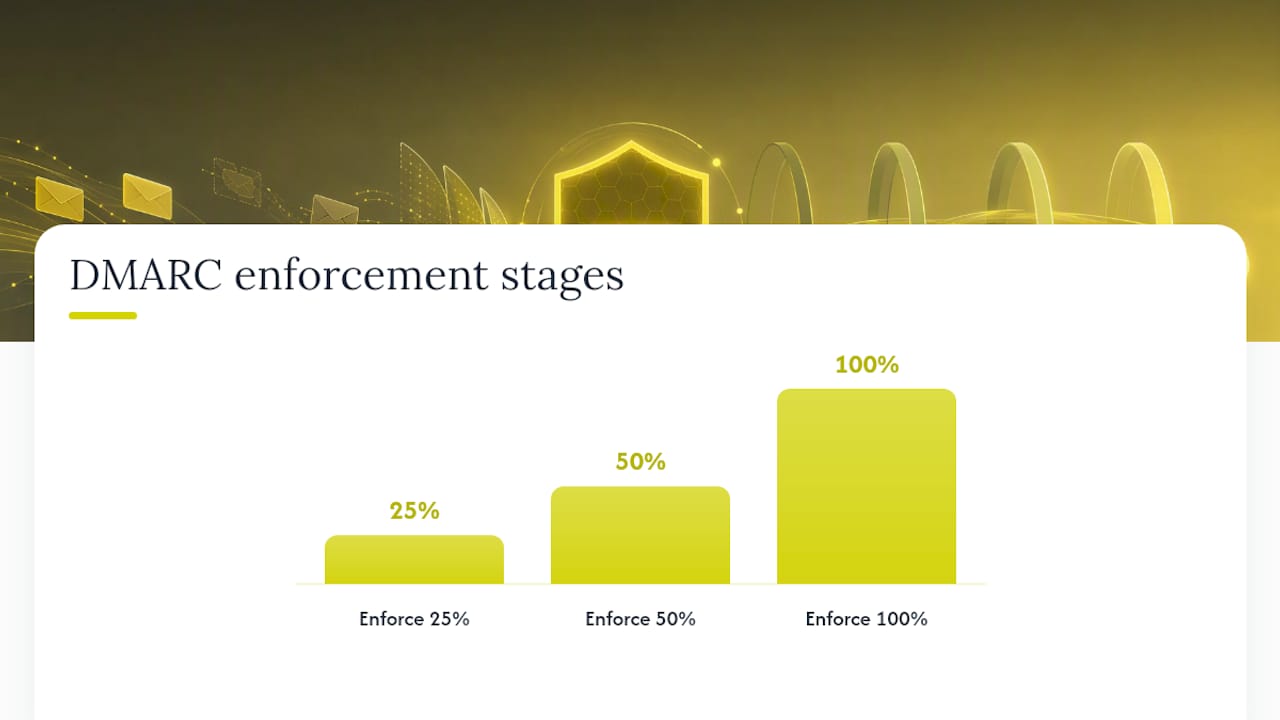
pct=at partial values (25, then 50, then 100) underp=quarantinebefore ever touchingp=reject.
A DMARC pass requires alignment with either SPF or DKIM, not both simultaneously, which is exactly why forwarded or relayed mail so often fails SPF alignment while still passing on DKIM alone. That single mechanic explains most of the “why did DMARC fail this legitimate email” support tickets an operations team will see during rollout.
Watching the aggregate report volume shrink week over week is the clearest signal that your streams are actually getting fixed rather than just tolerated. Organizations that skip straight to enforcement without this monitoring period routinely discover, only after mail starts bouncing, that a payroll system or a CRM had been sending unauthenticated for months.
How Do You Verify SPF, DKIM, and DMARC Are Working?
Verification isn’t a one-time task you check off after publishing records. It’s a recurring habit, especially during an active rollout when new sending sources get added without anyone remembering to update DNS.
- Use a DNS lookup tool to pull your SPF and DMARC TXT records directly and confirm they match what you intended to publish, catching typos before receivers do.
- Run your domain through an online SPF/DKIM/DMARC checker to get a plain-language pass/fail summary rather than parsing raw DNS output by hand.
- Send test messages to external mailboxes at major providers and inspect the full headers for three specific results:
spf=pass,dkim=pass, anddmarc=pass, confirming alignment rather than just individual protocol passes. - During active ramp toward enforcement, check aggregate reports daily; once you’re stable at
p=reject, weekly review is usually enough to catch anomalies. - Set up automated alerts for DNS record changes and unexpected spikes in DMARC failures, since a forgotten renewal or a vendor migration can silently break authentication overnight.
What Are the Most Common SPF, DKIM, and DMARC Pitfalls?
Most rollout failures trace back to a small handful of repeat offenders, and catching them early saves weeks of confused troubleshooting later.
- Duplicate TXT records. Two SPF records or two DMARC records on the same domain both cause validation failures; consolidate into one record and delete the other.
- Alignment failures from third-party senders. A vendor sending “on your behalf” often authenticates with their own domain, not yours; ask them specifically for custom DKIM signing under your domain.
- Forwarding and mailing lists. These routinely break SPF alignment because the forwarding server isn’t in your SPF record; DKIM signatures survive this better since they travel with the message itself.
- Forgotten senders. A dormant marketing tool or an old invoicing system nobody remembers can quietly fail DMARC for months before someone notices bounced mail.
Pro Tip: If enforcement causes real mail loss, revert to p=none immediately rather than troubleshooting live at p=reject. Fix the failing stream first, confirm clean aggregate reports for several days, then step back up.
Why Trust This Setup Guidance, and When Should You Get Managed Help?
This guidance reflects how 247techify approaches email authentication for regulated clients in healthcare, finance, and legal services, where a botched DMARC rollout doesn’t just bounce mail, it creates compliance exposure.
Complex send topologies are where DIY setups usually run into trouble: a business running five or six third-party platforms alongside Microsoft 365, each needing its own SPF include or custom DKIM signing, often exceeds what an internal team can safely test without breaking live mail. Organizations in regulated industries needing audit-ready documentation of their Microsoft 365 configuration or ongoing phishing simulation and training programs tend to get more value from managed setup than from a one-time DNS edit.
What’s the Right Enforcement Posture for Most Organizations?
Start monitored, and stay there longer than feels comfortable. The organizations that get burned by DMARC almost always ramped enforcement faster than their reports justified, usually because nobody was assigned to actually read the aggregate data. Assign one person, not a shared inbox nobody checks, to review reports daily during ramp and prioritize DKIM alignment over SPF patches, since DKIM survives forwarding and third-party relays that SPF simply cannot.
Authentication setup works best as one piece of a broader enterprise security posture, not a standalone project. Pairing DMARC enforcement with a genuine phishing simulation program closes the gap that pure DNS records can’t, since a well-crafted lookalike domain will never touch your SPF or DKIM records at all.
— 247techify Team
Let 247techify Handle Your Email Authentication Setup
Getting SPF, DKIM, and DMARC right across a real business, one juggling Microsoft 365, a CRM, a help desk platform, and a handful of transactional senders, takes more sustained attention than most internal IT teams can spare on top of daily tickets. A cybersecurity-focused managed IT approach handles the full sequence: inventorying every sending source, correcting SPF and DKIM DNS records, publishing a properly staged DMARC policy, and monitoring aggregate reports through enforcement so nothing gets dropped along the way.

This work fits naturally alongside the Microsoft 365 & Cloud support and cybersecurity services that regulated businesses in healthcare, finance, and legal already rely on for HIPAA and PCI-DSS compliance work. If your organization needs audit-ready documentation of its email authentication posture rather than a best-effort DNS edit, check current pricing and plans or reach out to scope a Discovery engagement for your specific send topology.
Sources
For exact syntax and spec-level detail, consult RFC 7489 for the DMARC specification, Microsoft Learn for Microsoft 365 configuration steps, and dmarcreport.com for record examples. Use a report parser to convert aggregate XML into actionable per-sender lists.
- DMARC record
FAQ
What Are SPF, DKIM, and DMARC?
SPF authorizes which mail servers can send email for your domain, DKIM cryptographically signs messages to prove they weren’t altered in transit, and DMARC tells receivers what to do when a message fails both, while also requesting reports on the results. Together they form the standard framework for email authentication setup across nearly every major mail provider.
Does DMARC Need Both SPF and DKIM?
No. DMARC passes when a message aligns with either SPF or DKIM, not necessarily both at once, according to RFC 7489. Most organizations still configure both, since DKIM tends to survive forwarding scenarios where SPF alignment breaks.
How Do You Authenticate Email With SPF, DKIM, and DMARC?
Publish SPF and DKIM records first so receivers can verify your sending sources and message signatures, then add a DMARC TXT record at _dmarc.yourdomain.com with v=DMARC1; p=none; rua= to begin monitoring, per Microsoft’s recommended sequencing. Ramp the policy toward quarantine and reject only after aggregate reports show consistent alignment.
How Do You Verify SPF, DKIM, and DMARC Are Set Up Correctly?
Send a test message to an external mailbox and check the raw headers for spf=pass, dkim=pass, and dmarc=pass in the Authentication-Results line. Online DNS checkers can also confirm your published TXT records match what you intended before you rely on live mail tests.